Search This Blog

Friday, 17 April 2009

Q&A - Run bwavinfo for detected files

Q&A

Adam on our Forum asks:

Q

Hi all,

I'll confess I'm no expert on scripting, but I've had a good deal of success in running simple batch files on watched directories, up until now..

I'm trying to run a command 'bwavinfo' via a simple .bat file. For the command to work, it requires an "--info" switch after the bwavinfo command, and before the input/output filenames (i.e. bwavinfo --info in.wav >in.txt). I have a working batch file which will do this outside of watchdirectory using the above script, though when i try and run it via watchdirectory, i'm met with a 'bwavinfo is not reconized as an internal or external command' message.

Here's my WD batch file:

bwavinfo --info "%WD_FILE%" >"N:\%WD_FILE_B%.wav.txt"

bwavinfo relies on Ruby and Java to run, but has been installed correctly, and works fine via a command prompt. Where am I going wrong?!

Adam.

A

Adam,

bwavinfo --info "%WD_FILE%" >"N:\%WD_FILE_B%.wav.txt"

May I suggest to you to always use full path-names in batch scripts. Something like this:

"C:\Program Files\bwa\bwavinfo.exe" --info "%WD_FILE%" >"N:\%WD_FILE_B%.wav.txt"

That way, the bwainfo program can be found no matter how your PATH is setup.

Also, redirecting to "N:\...."... it looks like N: is a mapped network drive? Remember that these drive-mapping will not work if you run this WD task as a service. It is probably a better way to use the UNC name of the drive-mapping, something like

"C:\Program Files\bwa\bwavinfo.exe" --info "%WD_FILE%" >"\\Server\share\%WD_FILE_B%.wav.txt"

Finally, for the Ruby & Java issue, you also need to remember that the environment (among other things the PATH setting) may be different for Windows Services. You could temporarily change the PATH in your batch-script yourself, to work-around this, something like

 
SET PATH=C:\Program Files\Java\jre1.6.0\bin;%PATH%
SET PATH=C:\Program Files\RoR\Bin;%PATH%
"C:\Program Files\bwa\bwavinfo.exe" --info "%WD_FILE%" >"\\Server\share\%WD_FILE_B%.wav.txt" 

Further reading

All those WD_ variables you can use in your batch files...

Saturday, 11 April 2009

Convert TIFF to PDF

A request we often get is a way to convert TIFF files to PDF with WatchDirectory.

While WD does not have a native way to do this, you should be aware that WD's "Automatically Run a Batch File" plugin can do almost anything. If there is a command line tool available, WatchDirectory can "run it".

Anyway, we have found 2 ways to convert TIFF to PDF using command line tools. The batch scripts below should be started by WD's "run a batch file" plugin. It is also a good idea to create a filter so WD will only start the script for TIF and TIFF files.

ImageMagick and Ghostscript

ImageMagick is one of my favorite tools for image manipulation. If a format is not "natively" supported by ImageMagick, it can delegate to other tools. ImageMagick needs Ghostscript for PDF support.

Downloads needed:
ImageMagick, I currently use v6.5.1, available here: http://www.imagemagick.org/script/binary-releases.php#windows.
Ghostscript, I currently use v8.6.3, available here: http://mirror.switch.ch/ftp/mirror/ghost/GPL/gs863/.

The ImageMagick/Ghostscript script. Note you don't see any reference to Ghostscript, but it must be installed otherwise the script won't work.

@echo off
IF "%WD_FILE_E%" NEQ "TIF" (
   IF "%WD_FILE_E%" NEQ "TIFF" GOTO :EOF
)
rem where is ImageMagick installed???
SET IMADIR=C:\Program Files\ImageMagick-6.5.1-Q16

"%IMADIR%\convert.exe" "%WD_FILE%" "%WD_FILE_D%\%WD_FILE_B%.pdf"
IF %ERRORLEVEL% NEQ 0 GOTO :EOF

rem if you want to remove the tiff after it has been converted
rem uncomment (remove the "rem") the next line
rem DEL "%WD_FILE%"

Irfanview

Another great tool, I didn't even know it supported command line conversions until Dirk (German language support) told me. You can download Irfanview here.

The Irfanview script:

@echo off
IF "%WD_FILE_E%" NEQ "TIF" (
   IF "%WD_FILE_E%" NEQ "TIFF" GOTO :EOF
)
rem where is Irfanview installed???
SET IMADIR=C:\Program Files\irfanview

"%IMADIR%\i_view32.exe" "%WD_FILE%" /convert="%WD_FILE_D%\%WD_FILE_B%.pdf"
IF %ERRORLEVEL% NEQ 0 GOTO :EOF

rem if you want to remove the tiff after it has been converted
rem uncomment (remove the "rem") the next line
rem DEL "%WD_FILE%"

IrfanView settings

Current releases of IrfanView will prompt you with a little popup window (to preview the PDF). Obviously, you don't want that when you are automating the creation of PDF files.

Just start IrfanView, open a TIFF file and save it as PDF. Next to the "Save As" window, where you enter the pdf filename, is a little window where you should select the "not needed" option. From now on, the script above will not cause those prompts.

Friday, 10 April 2009

Q&A - Clear the email queue

Q&A

Flyinglow on our Forum asks:

Q

I have Watch Directory installed on a Management server. It watches directories on a database server. The database server crashed and had to be rebuilt on a new machine. All the files were copied over via a backup. I went into the Watch Directory jobs and just changed the server name for all the directories it was watching as we recreated the folder structure exactly.

When I started the jobs Watch Directory viewed all the files in the folder as new or changed and started sending out mass emails. I turned off all the jobs to stop it. Now when I turn on the System.Mail job it keeps sending out more messages even though all the other jobs are still turned off.

Is there any way to clear the queue for System.Mail? I already went into all the jobs and turned off the missed events option but I haven't turned any of them back on since I can't start System.Mail without flooding my email server.

A

When a WatchDirectory task sends email, the email message is only prepared: it is written to a directory monitored by the System.Mail task (the wdPostman program). When System.Mail detects the new message in this directory, it is read and sent.

If, for some reason, you want to clear this email queue, you should remove all files in the following directory:

C:\ProgramData\watchDirectory\System.Mail\Out

The directory above is the default location on Windows Vista.
You open the "System.Mail\Out" directory by right-clicking the System.Mail task and select the "Explore ..." menu option. Alternatively, select "Tools -> Explore Task Directory" (this opens C:\ProgramData\watchDirectory) and navigate to the System.Mail\Out sub-folder.

The directory contains files with a wdmail extension. These are the actual email messages waiting to be sent by System.Mail/wdPostman. If you have WatchDirectory tasks that are set to "Combine" email messages, you will also find files with a wdmailcombine extension in this directory. Delete these as well.

Thursday, 2 April 2009

Small WatchFTP update

Ä
Ö

We just released a small update for WatchFTP that fixes an issue for people that use accented characters in file or directory names.

Depending on the actual name, the file did not download. Other filenames with accented characters did download, but if you set the task to remove the FTP file after download, the delete failed.

The new release is available on our English, German and Spanish sites.
Just install this release "on top" of your current install and it will keep your configured tasks and settings.

Tuesday, 24 March 2009

USA Transcription Services - A customer of WatchFTP and WatchDirectory

USA Transcription Services

What a pleasant and unexpected surprise in this day and age to get not only a superb product with WatchFTP and WatchDirectory, but unbelievable customer support, as well!

These products have shaved hours off my workday. So much so that I am actively seeking new customers now! Before these great products, I was spending hours doing the mundane tasks of moving files from one place to the other. Not any more! (read more...).

Sunday, 22 March 2009

WatchFTP 2.1 Released

We just released WatchFTP v2.1, the download is available here.

Changes in this release

  • New: A new column in the WatchFTP Control Center showing you the number of files downloaded and the number of files waiting to download. These counts are for the last 24 hours.
  • New: The context menu of tasks (right-click the task to see it) now shows the downloaded filenames. When you click a filename, it will start Windows Explorer with that file pre-selected.
  • Fixed: Better detection of corrupt downloads - the downloaded file will be deleted and redownloaded.

Install this new release "on top" of your current release so it will keep your tasks and settings.

Monday, 16 March 2009

New WatchFTP beta

There is a new beta available for WatchFTP 2.1.

This new version fixes an issue where unreliable internet connections could cause corrupt downloads.

There are also a few new features in this release:

The main window has a new column showing the number of files downloaded and the number of files waiting to be downloaded during the last 24 hours.
The "right-click" context menu of tasks shows the downloaded files. Clicking a file starts Windows Explorer with that file pre-selected. After you have selected a file from this menu, it will appear on the menu with a checkmark.

You can find the download on our forum: http://www.watchftp.com/cgi-bin/yabb2/YaBB.pl?num=1237198278

Saturday, 28 February 2009

New WatchDirectory beta

We just released a new WatchDirectory beta for version 4.5.9.

See this forum post for the download link.

The beta has one bugfix and one new feature.

The plugin to "launch programs" did not set the WD_REASON variable for new folders properly (it was set to DIREW instead of DIRNEW). This has been fixed - thanks for reporting this, Mark.

A new feature in the WD Control Center allows you to Find (and select) tasks. Use CTRL+F (or the View -> Find menu) to find tasks. This can be very helpful if you have a lot of tasks to manage.

Monday, 23 February 2009

GMail as your SMTP server

WatchDirectory v4.7

The work-around described in this post will soon be obsolete. The new beta for WatchDirectory v4.7 implements secure SMTP connections, see this blogpost

GMail requires secure connections

If you want to configure WatchDirectory to use GMail as its SMTP server, you will find that currently WatchDirectory does not support secure (TLS/STARTTLS) connections for email. To work around this, you will need to run another program (stunnel) to "wrap" WatchDirectory's connection to GMail. WatchDirectory will then connect to stunnel, which will connect to gmail.

Download / Configure stunnel

Download stunnel-4.xx-installer.exe (I tested with version 4.26) and run the installer. Install stunnel to the directory C:\Stunnel.

Inside the c:\Stunnel directory create a text file called gmailsmtp.txt with the following content (8 lines).

; SMTP configuration for Gmail
output = SMTPgmail.log
taskbar = no
cert = stunnel.pem
client = yes
[ssmtp]
accept = 10.0.0.1:8025
connect = smtp.gmail.com:465

Change 10.0.0.1 to your computer's IP address or name. Do not use "localhost" or 127.0.0.1 as that won't work.

Open a command prompt (cmd.exe) and navigate to the stunnel install directory (CD C:\Stunnel). Enter the following 2 commands to run stunnel as a Windows Service:

stunnel -install gmailsmtp.txt
net start stunnel

Configure WatchDirectory

Now you need to configure WatchDirectory's Email Settings to connect to stunnel.

  • Your SMTP server: enter the same name or IP address you entered in gmailsmpt.txt
  • Port: 8025
  • Authentication: Login
  • Userid: your gmail address (john@gmail.com)
  • Password: your gmail password

Now press the "Test" button. If you configured everything correctly, a test email will be sent. This test email will also show up inside your gmail account in the "Sent Mail" folder.

Further Reading

Configure GMail
WatchDirectory's SMTP Settings

Saturday, 21 February 2009

Last Access Time on Vista

Just a quick note about Windows Vista (and probably Win2008 and Win7).

WatchDirectory's File Age monitoring method can detect "old files" based on their "Last Access Time" (the last time the file is opened). This timestamp is maintained on NTFS volumes when the registry key
HKEY_LOCAL_MACHINE\SYSTEM\CurrentControlSet\Control\FileSystem\NtfsDisableLastAccessUpdate
is set to zero or does not exist.

Windows versions before Vista defaulted this setting to zero, so the Last Access timestamp was maintained for files on NTFS volumes. To improve file system performance, Microsoft disabled Last Access recording on Vista.

If you want to detect "old files" based on their Last Access time, please make sure this registry setting is set to zero.

More information:
http://blogs.technet.com/filecab/archive/2006/11/07/disabling-last-access-time-in-windows-vista-to-improve-ntfs-performance.aspx

Saturday, 14 February 2009

Monitor Huge Directories for Changes

Just a few quick tips if you want to detect new, changed or deleted files in *huge* folders.

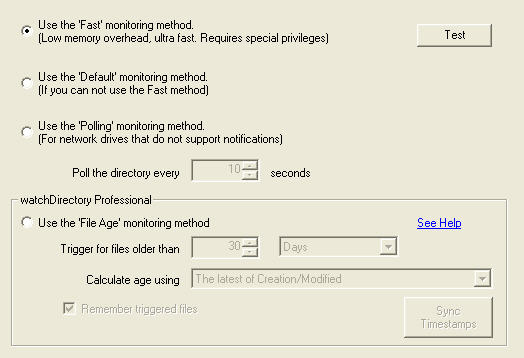
The most important setting (performance wise) in WatchDirectory is the Monitoring Method. You can select between several methods, but only the "Fast" method is independent of the size of the monitored directory. The other three methods work by scanning the directory for changes - large directories take more time and memory to process.
The "Fast" monitoring method doesn't need to scan the directory - Windows will inform the task of the exact change that happened.

If you can not use the "Fast" method, make sure to exclude all subfolders you do not want to monitor. Also filter out unneeded files and/or directories.
If you have the choice between "exclude sub-folders" and "filter", the optimum way (performance) is to exclude subfolders. An excluded subfolder is never scanned for changes. The filter events settings are applied at a much later stage - after the directories are scanned.

Even if you do use the "Fast" monitoring method, in some cases WatchDirectory will actually "scan" the directory. This happens when you

  • Select Fire FILENEW/DIRNEW events for all files at startup or When starting up, check for missed events on the Other Settings window.
  • Select Trigger for all files and subdirectories below the renamed directory on the Events to detect window.

I hope this post helps you understand the effect of the options you select in WatchDirectory.

Friday, 30 January 2009

WatchDirectory 4.5.8

New Release: WD 4.5.8

A few days ago we released WatchDirectory v4.5.8. This is a free upgrade for all version 4 customers. Just install this version "on top" of your current install so it will keep your tasks and settings.

What's New   Download